1Open the Images tab
On a vehicle detail page, click the Images tab in the top tab strip.
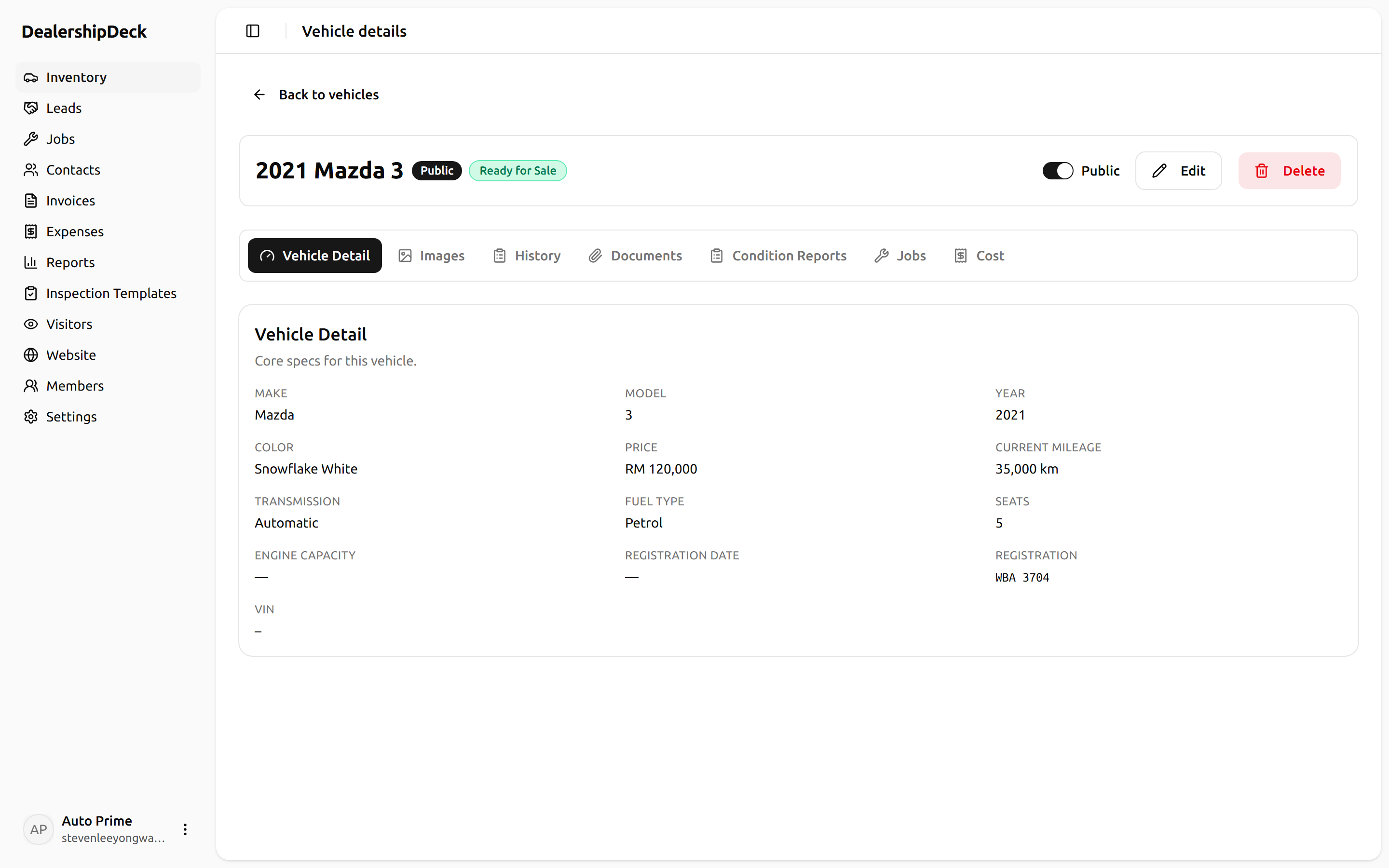
public/help/vehicle-images-1.png — Vehicle detail page with the horizontal tab strip; Images tab highlighted.2Public vs Internal
Public images show on the customer-facing listing and detail page. Internalimages stay in the admin portal — use them for damage records, paperwork photos, or anything you don't want public.
3Drag and drop, or click upload
Drop a batch of files directly onto the upload area, or click Upload and pick them. Progress bars show during upload.
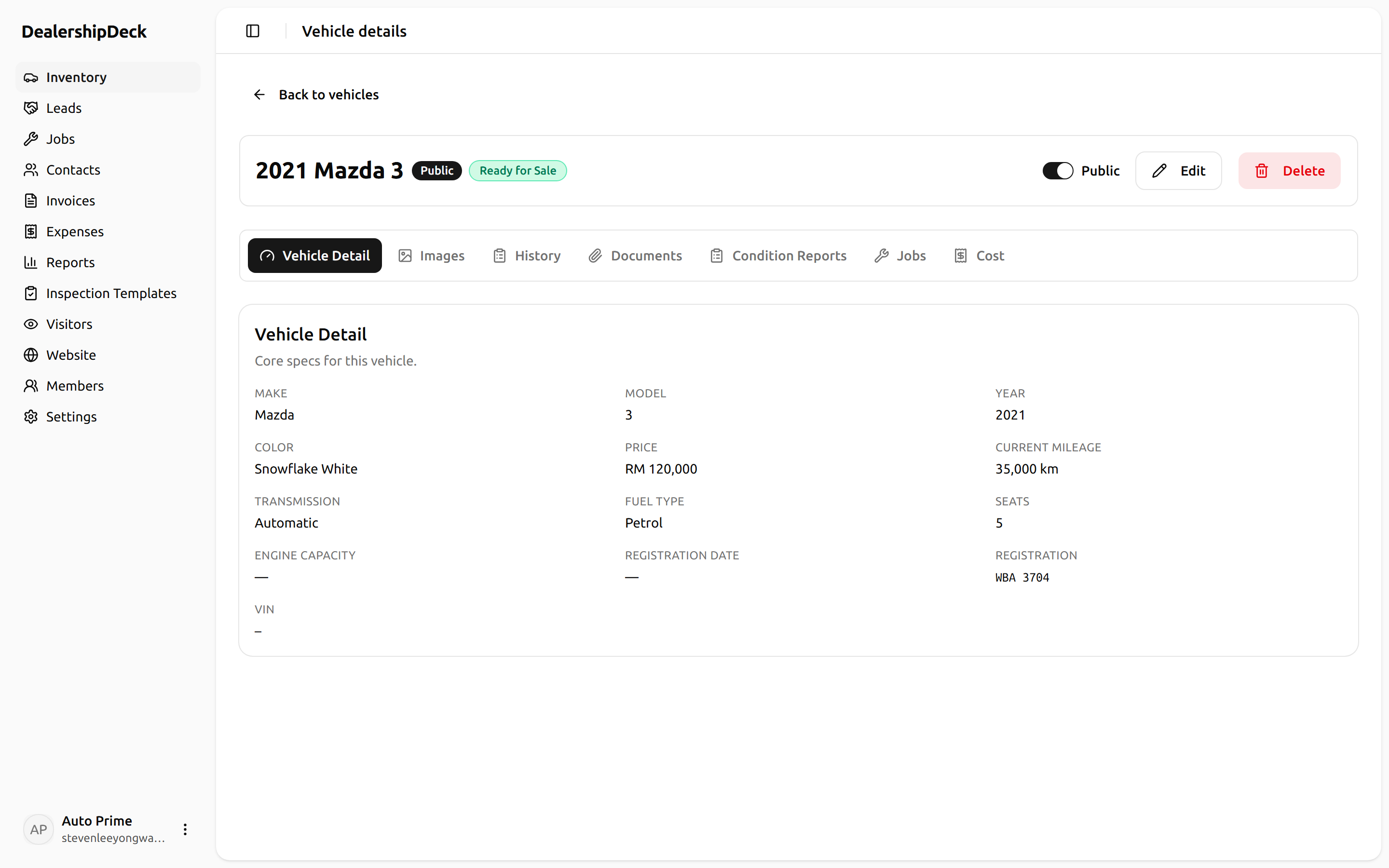
public/help/vehicle-images-3.png — The Images tab with both Public and Internal upload zones; show a partially-uploaded file with progress bar.4Reorder by drag
The first image is the cover photo on the browse grid. Drag thumbnails to reorder — the order saves automatically.